
XREAL
Air · Air 2 · Air 2 Pro · Air 2 Ultra · One · One Pro · 1S · XBX A01 · XBX A01 Plus · Light
PORTABLE AR + AI PC
Your Android phone becomes a computer you can wear. Work across a 3DoF spatial desktop, with OpenCode or Grok Bot helping you use your apps and get things done.
Latest release · APK · Android 9+ · ARM64
Will it run on my phone?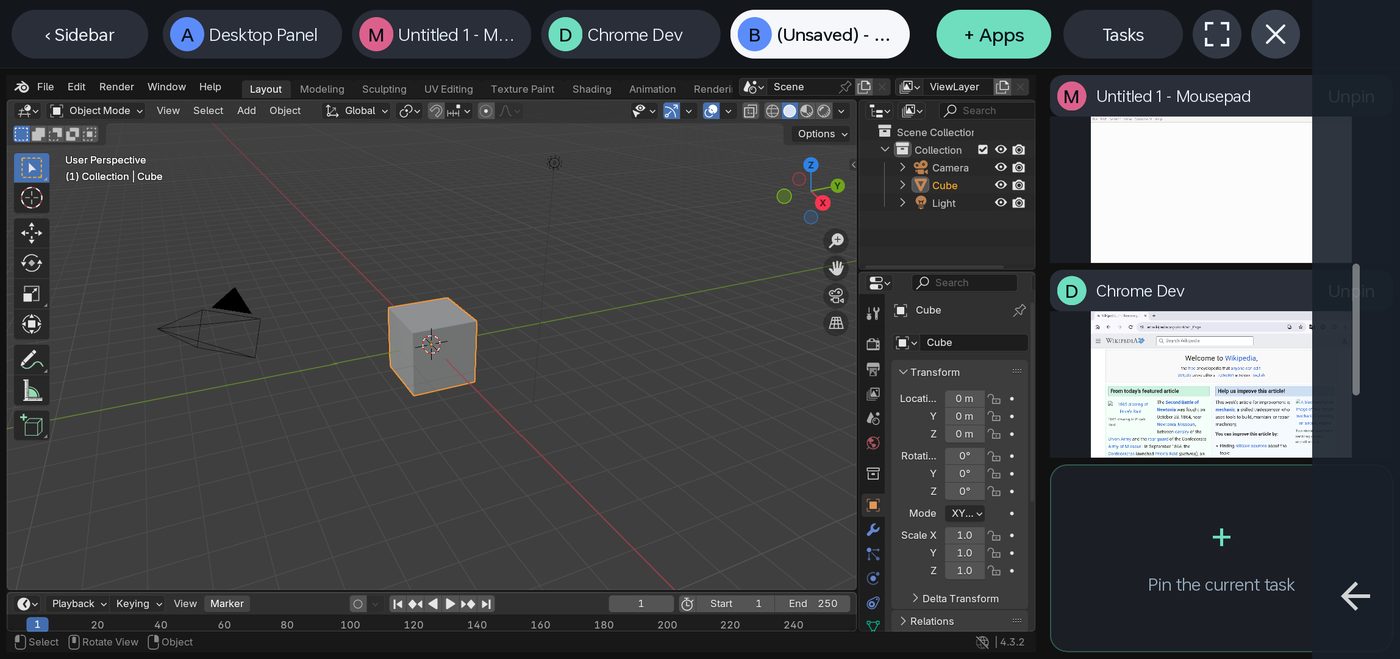
XREAL, RayNeo, VITURE, Rokid and GOOVIS. Choose a brand to see supported models.
Requires Android 12+ and video output from the phone and cable. Model-specific feature support varies.
OPENCODE / GROK BOT
Ask it to work with apps, not just answer questions. Both assistants can use ARLinux’s accessibility, screenshots and shell tools in the same desktop.
Read app controls through accessibility, or inspect a screenshot when a visual check is needed.
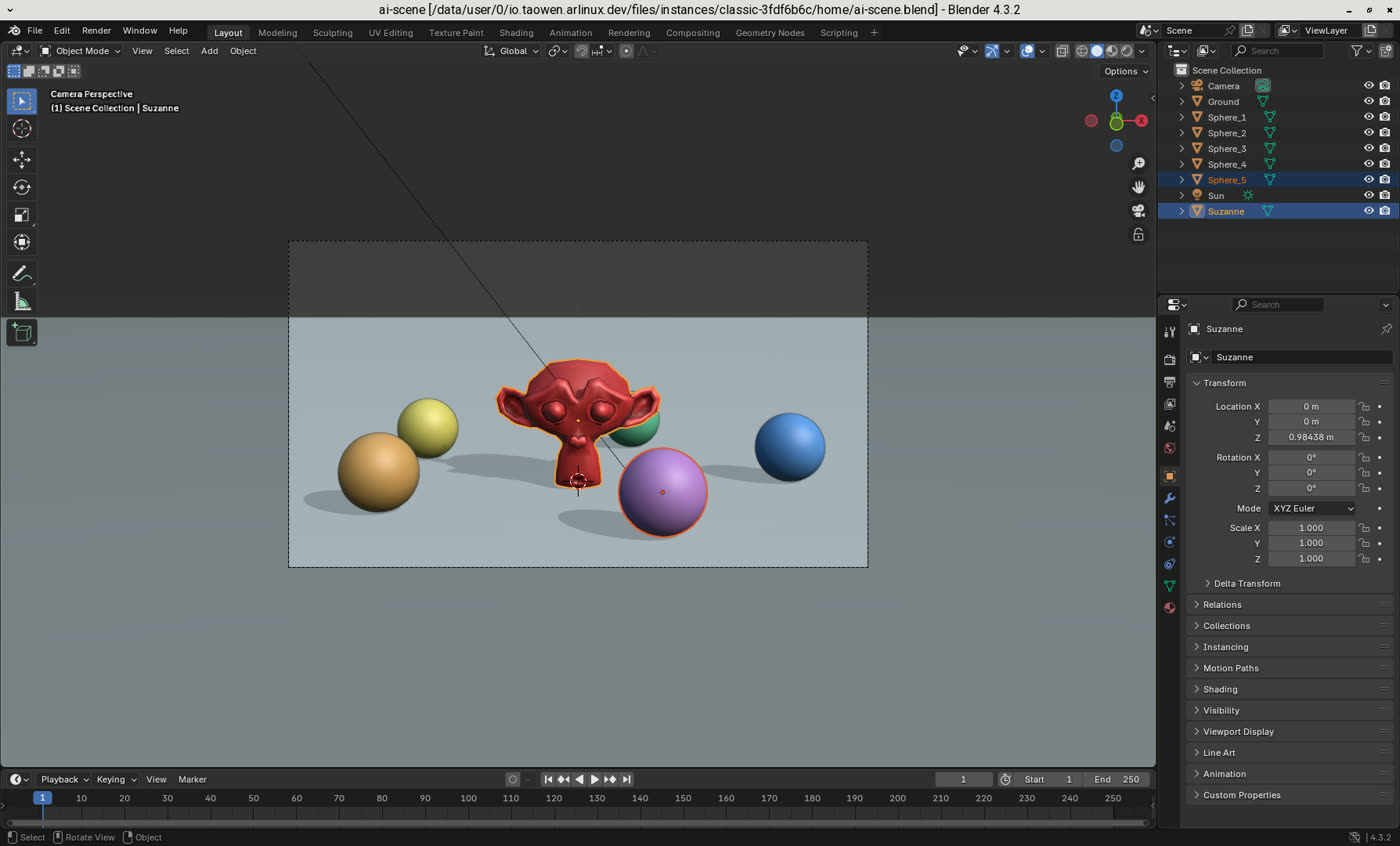
Help edit a document in WPS, operate an Android app, or write and run a Blender script.
Run commands, manage files and write code. Optional screen sharing and ADB extend its reach to your phone, with your authorization.
Speak or type your request. Choose OpenCode or Grok Bot in Apps → Settings → AI assistant. First use guides you through installation.
AI models need internet. Model availability, accounts and charges depend on the provider. Screen sharing and wireless ADB require your approval in Android.
3DoF SPATIAL DESKTOP
Connect supported AR glasses, select their output and enable Extra-large spatial screen. Your desktop stays in place as you turn your head. Keep your editor, browser and assistant within view.
Requires Android 12+, video output from your phone and cable, and supported AR glasses. Glasses are optional; ARLinux also works on the phone screen.
Choose Classic for spatial screens. Freely position and resize windows across the workspace. Yibu’s main area and side slots are designed for the phone screen. Spatial screen setup →
A 5760 × 2160 workspace by default. Spread your windows across a desktop larger than a single view. Change the workspace resolution from the output information button.
Your phone becomes the remote: point by moving it, use the touch area or type. Recenter when needed. Unplug the glasses to continue on the phone; reconnect to return to the spatial desktop.
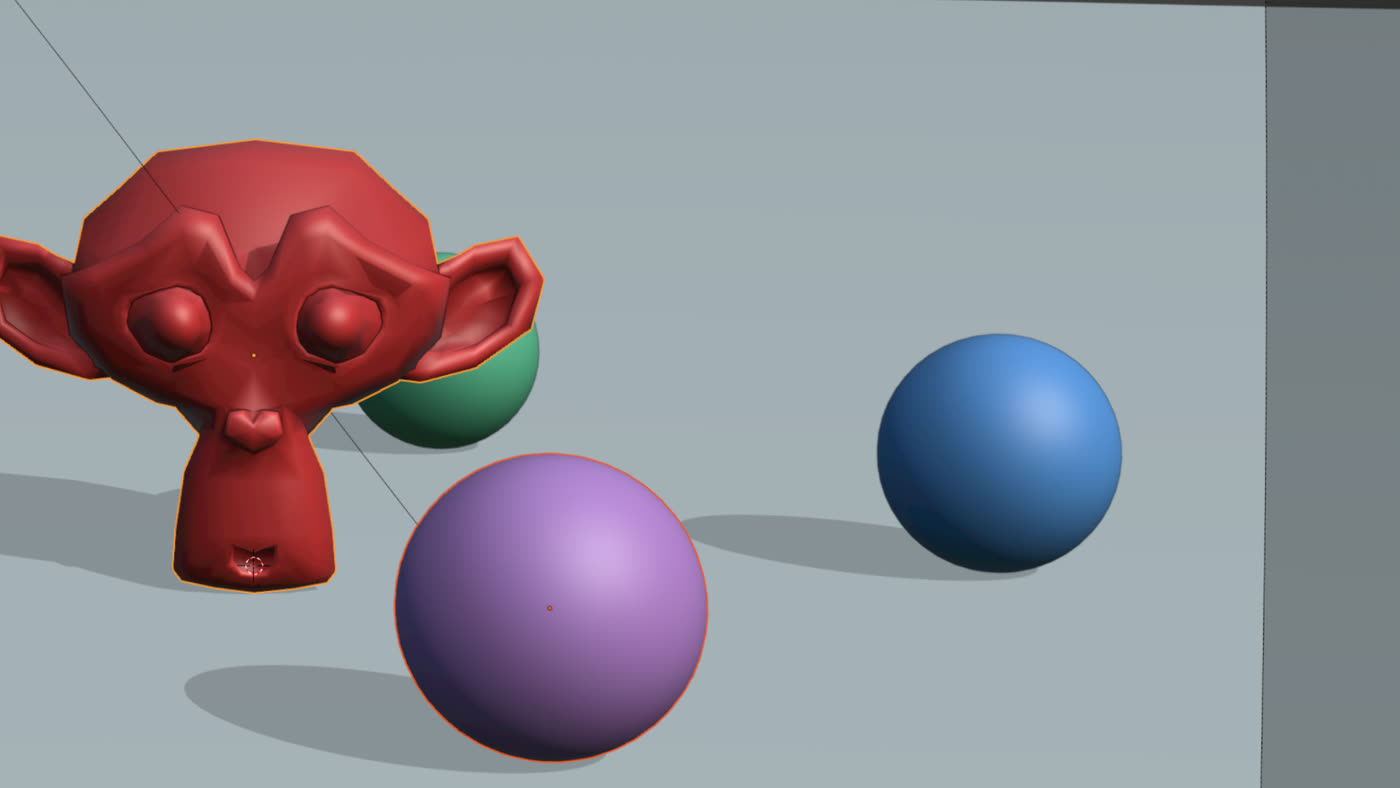
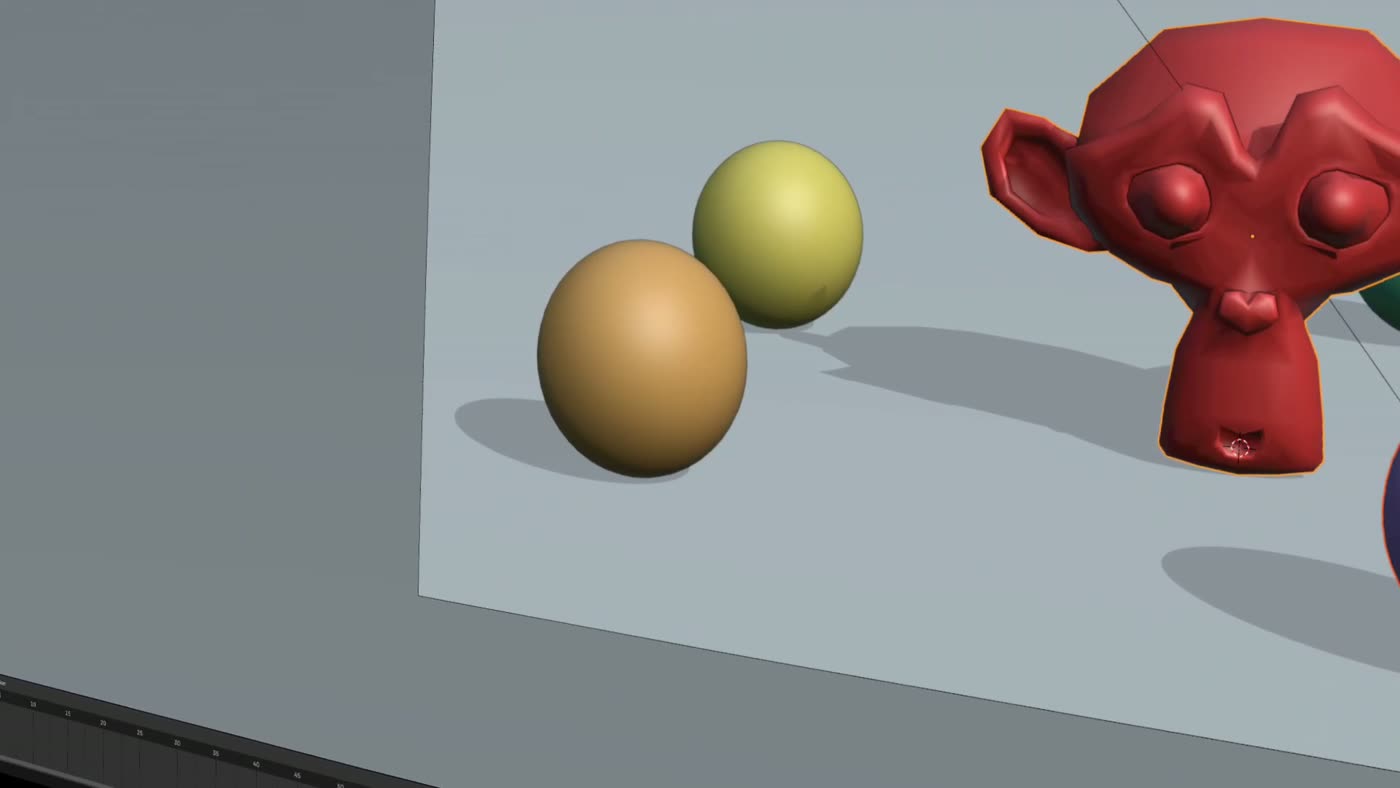
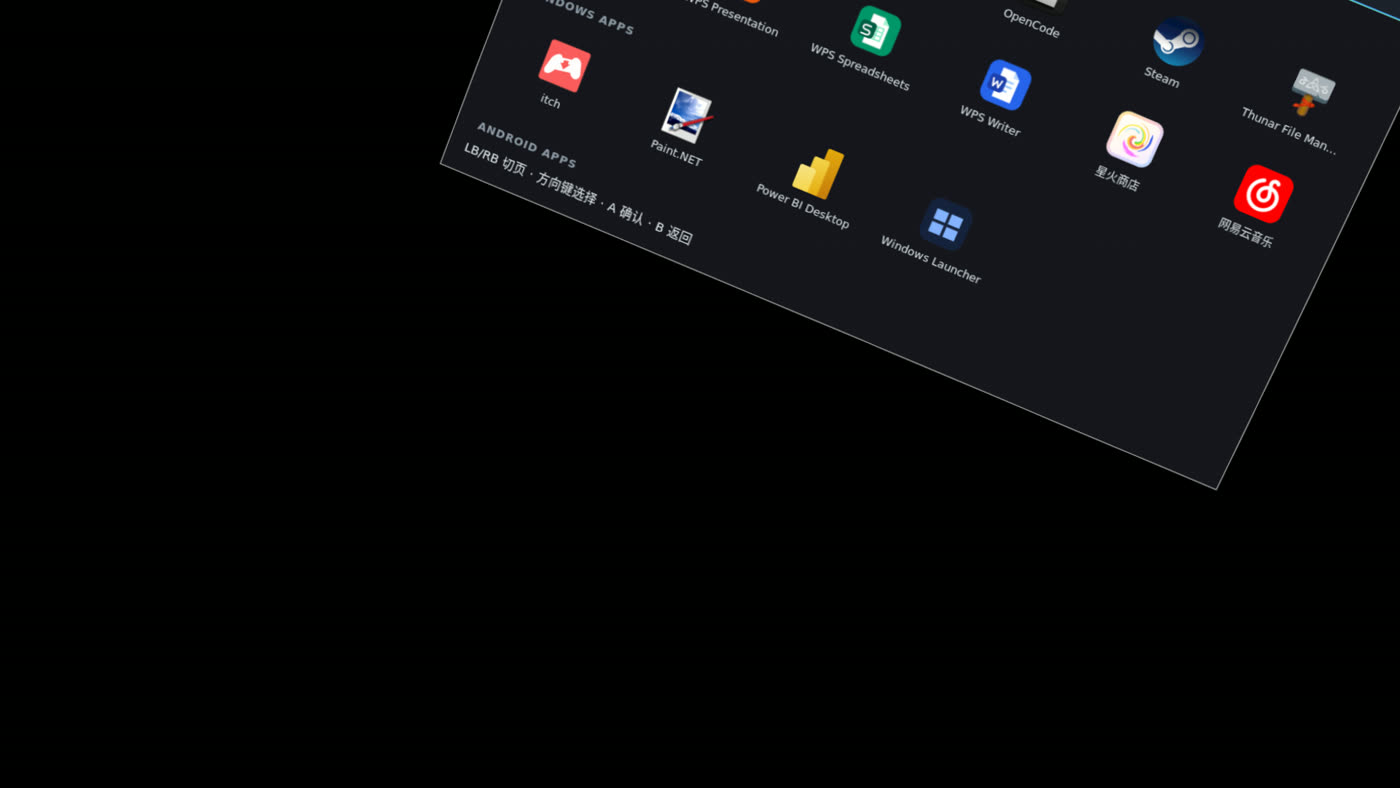
Recorded from the display output of XREAL XBX A01 glasses on an AYANEO Pocket FIT.
Air · Air 2 · Air 2 Pro · Air 2 Ultra · One · One Pro · 1S · XBX A01 · XBX A01 Plus · Light

Air 1s · Air Plus · Air 2 · Air 2s · Air 3 · Air 3s · Air 3s Pro · Air 4 · Air 4 Pro · GT · GT Max

One · Lite · Pro · Luma · Luma Pro · Luma Cyber · Beast · Pro 2 · Ultra

Air · Max · Max 2

G3 Max · G3X · G3X Pro · Art (A1)
Brand marks identify compatible devices and belong to their respective owners; no endorsement is implied.
FOUR KINDS OF APPS
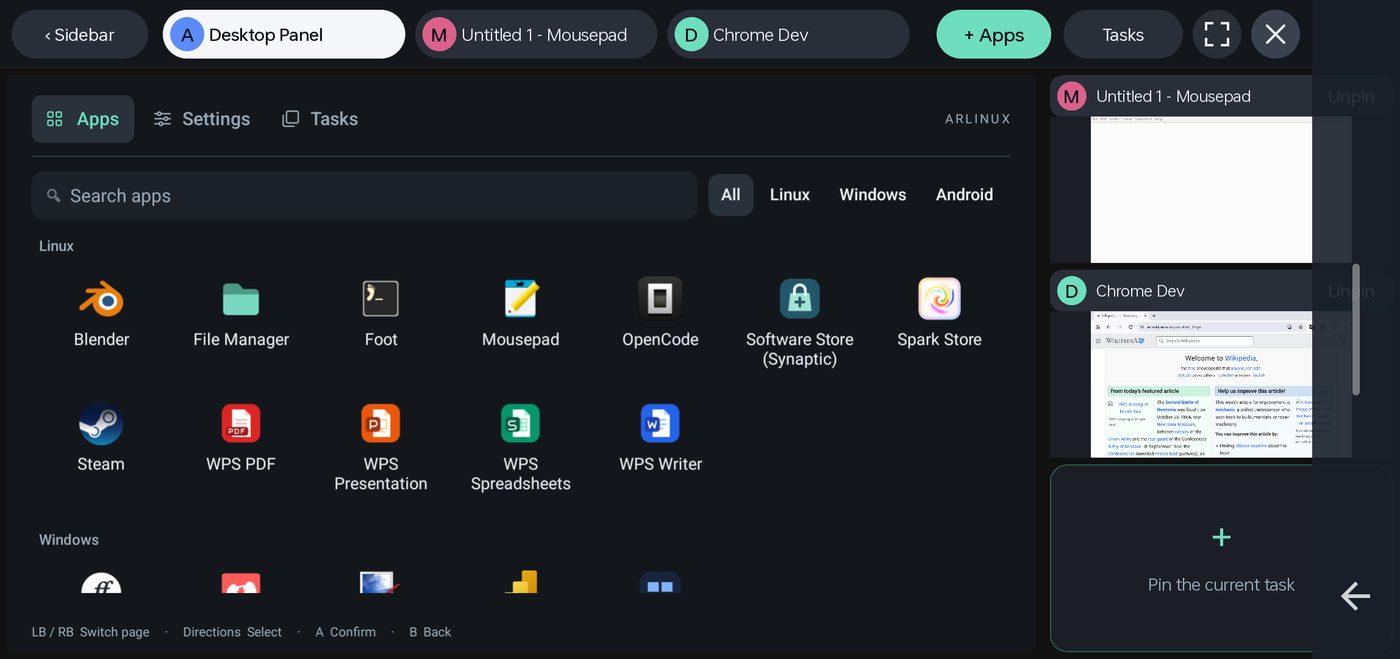
Double-tap the right-edge bar to open Apps. Search across all four kinds, or switch to Settings for touch mode and keyboard.
 ANDROID
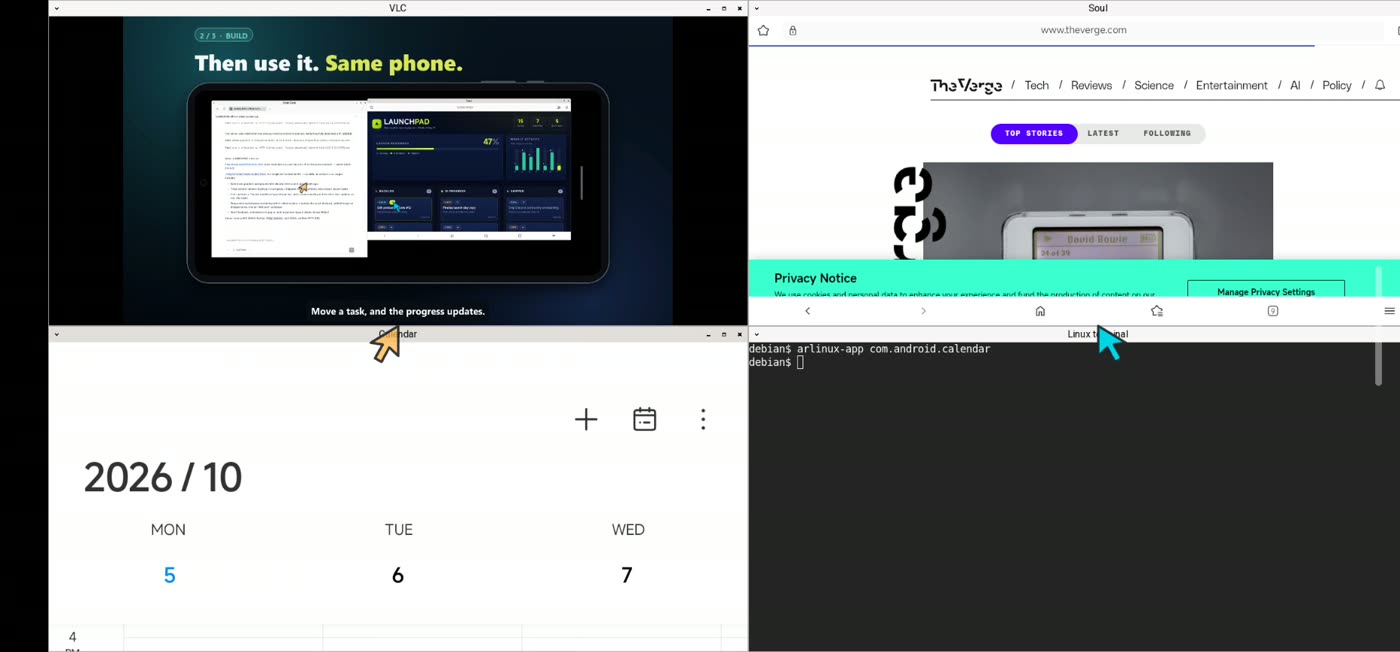
The apps already on your phone, in desktop windows: WPS, CapCut, VLC, Edge, Calendar. Type with WeChat Input or Gboard.
Needs Android 11+. Not every app is compatible.
 LINUX
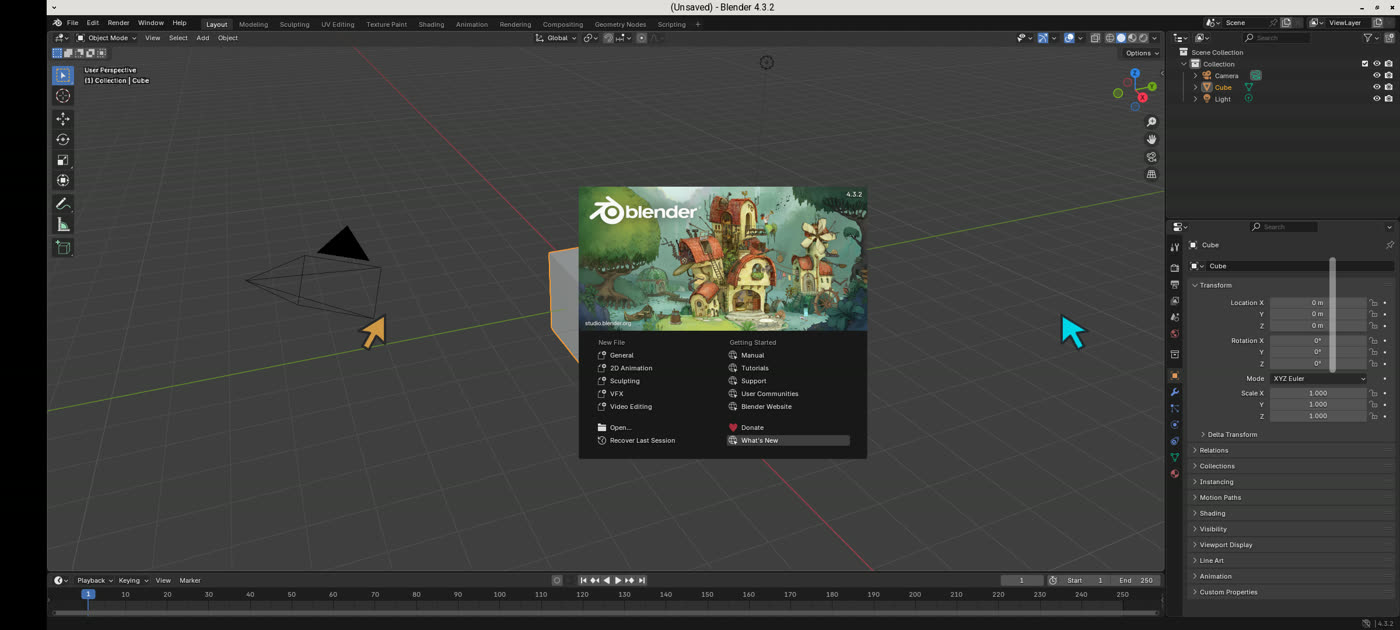
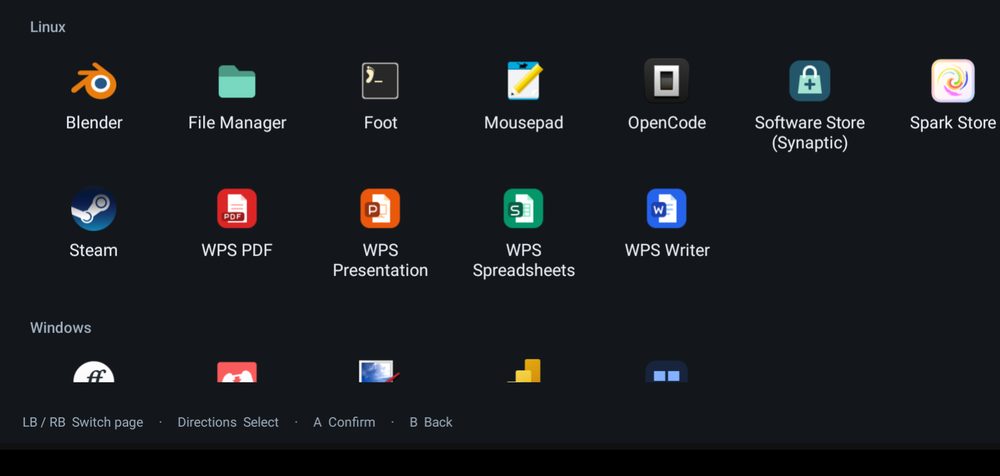
A full Debian system: LibreOffice, WPS, Chromium, Blender, GIMP, Kdenlive and anything else from apt, on the phone’s GPU.
Blender 4.3 recorded on Snapdragon (Adreno) and Dimensity (Mali) phones.
 WINDOWS
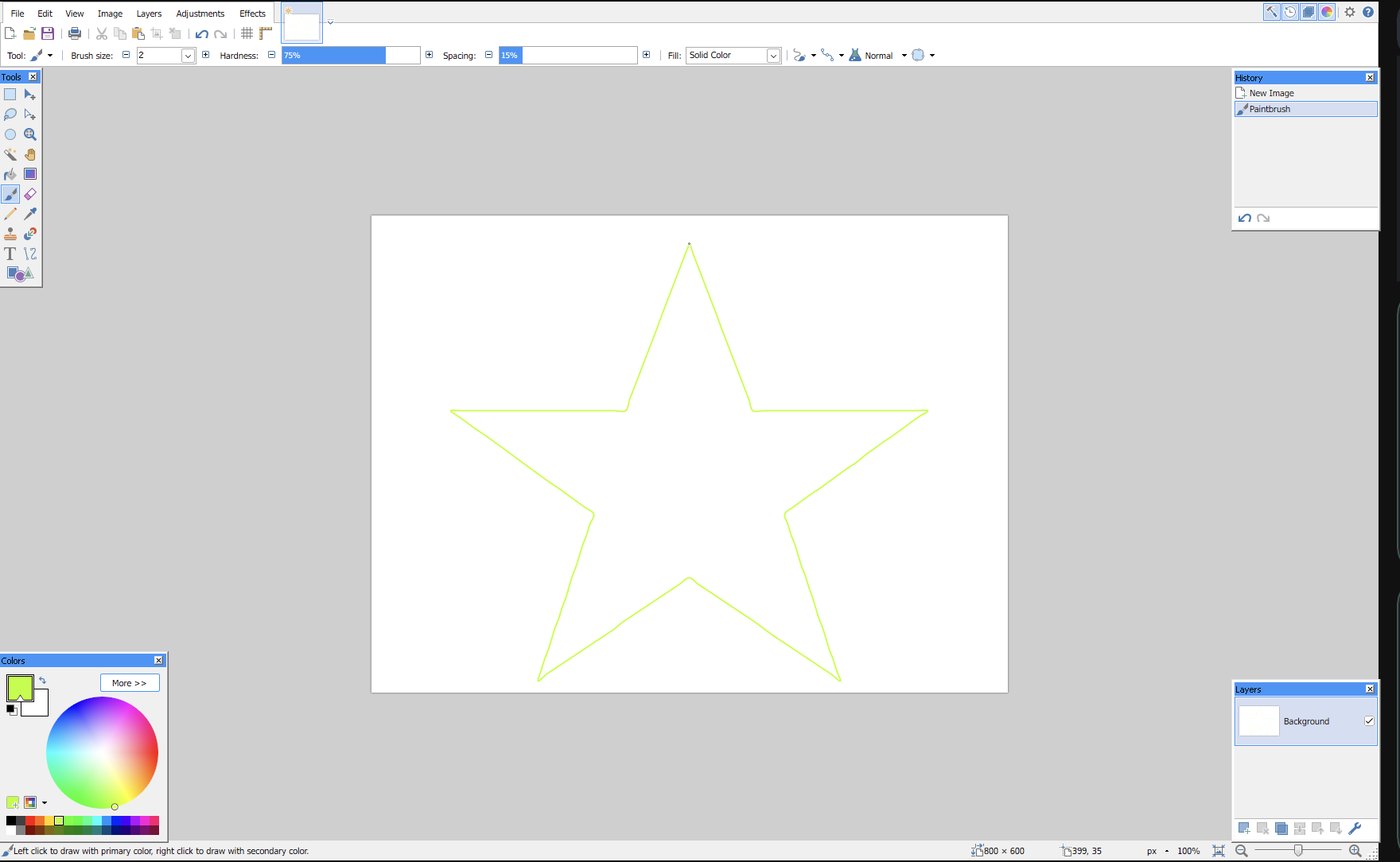
Paint.NET and Power BI Desktop install from Apps with one tap. Windows Launcher opens any unpacked .exe from your phone’s storage. Wine runs natively on Android; FEX translates x86 code.
Not every Windows program runs. Tell us what you need.
 STEAM
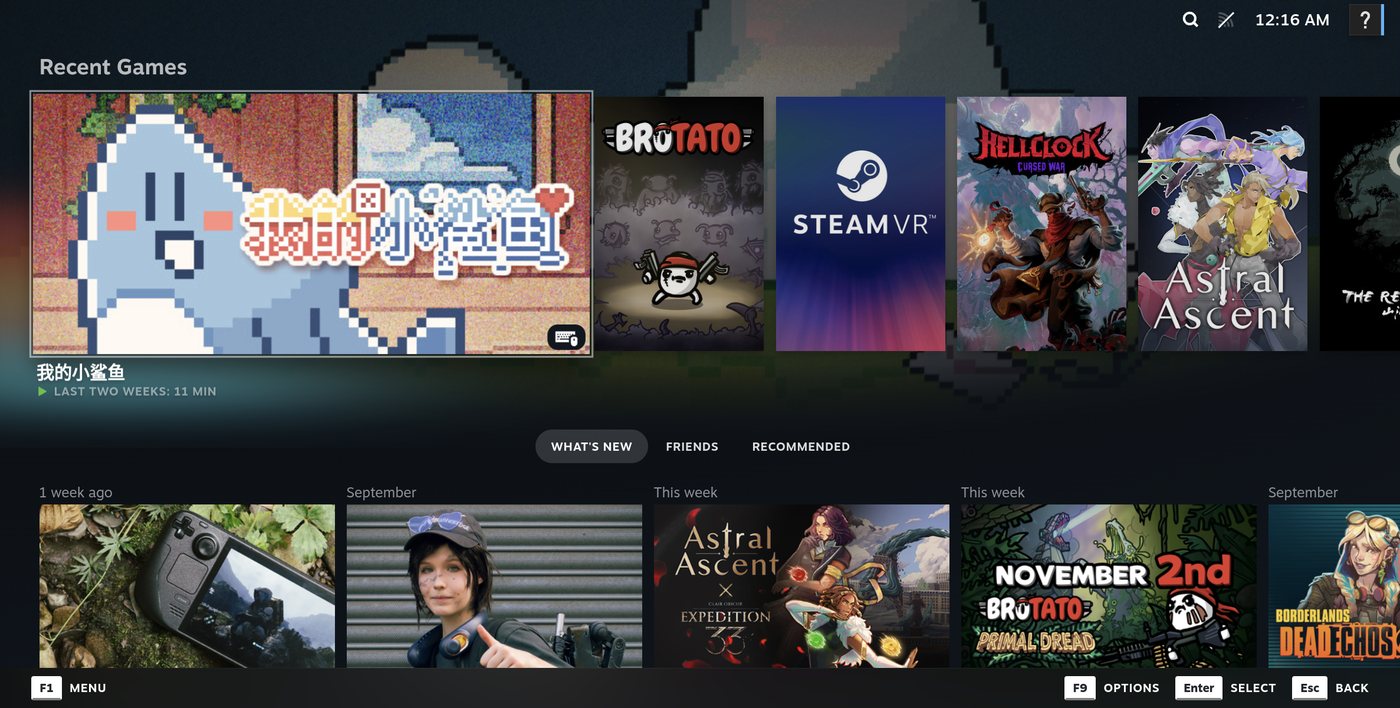
Steam opens in Big Picture. Linux games run through Valve’s FEX; Windows games through ARLinux’s Bionic Wine, picked automatically, so you just press Play. Verified: Brotato, My Little Shark, Lost Castle, LivingBattle.
Valve doesn’t officially support ARM Linux yet. Games with anti-cheat won’t run.
Edit Kotlin or C++ in Geany. Gradle and the NDK compile on ARM64; the new APK opens in a window seconds later.
Connect a monitor or AR glasses and work on the big screen. Hold the phone upright and it becomes the remote.
Needs Android 12+ and a phone, cable and adapter with video output.
See supported AR glasses →TWO DESKTOPS, BUILT IN
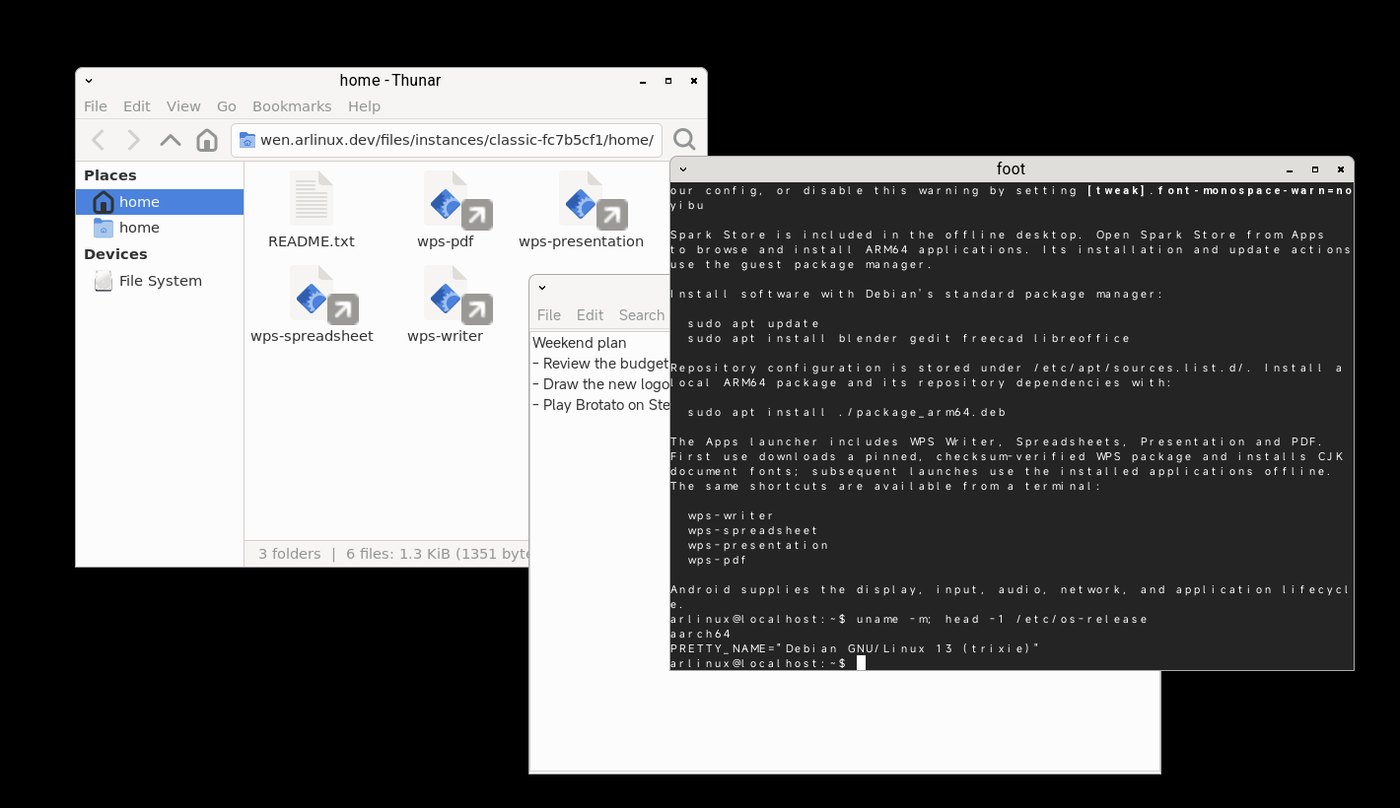
Yibu and Classic are both Debian, configured with different desktop appearances and window layouts. Both come inside the APK and start offline, with the same apps available. Keep one or both: each is its own workspace on the start screen.
SEE IT IN 30 SECONDS
GET STARTED
Download on your phone and open it from Downloads. If Android asks, allow your browser to install apps.
Yibu and Classic are inside the APK. The first launch unpacks the desktop on the phone; no download needed. Leave a few GB free.
Long-press the right-edge bar to open your assistant. Use the phone on its own, or connect supported AR glasses for a 3DoF spatial workspace.
How the controls work ↓The small installer is for first-time installation. Already have ARLinux? Use its in-app updater.
ARM64 Android 9+ · Android apps in windows: Android 11+ · External screens: Android 12+ · No root, no Shizuku, no second computer.
CONTROLS
123Tap a task to bring it forward; + Apps, full screen and close are on the right. Swipe right along the controls to hide them; Android Back shows them again.
Tap for the keyboard, double-tap for Apps. Long-press to open your selected AI assistant: OpenCode or Grok Bot. In landscape, slide along the bar to scroll.
Tap to go back in the current app (Esc in Linux and Windows apps). Hold to switch to the next touch mode.
Tap a button to click it. Swipe to scroll. Hold, then move to drag or select text.
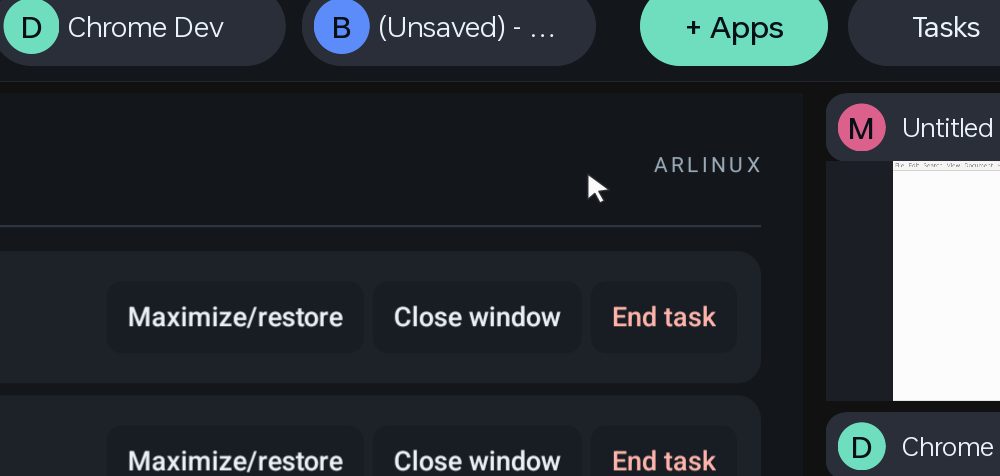
Slide anywhere to move one pointer, tap to click. Two fingers scroll or right-click. Precise on small desktop controls.
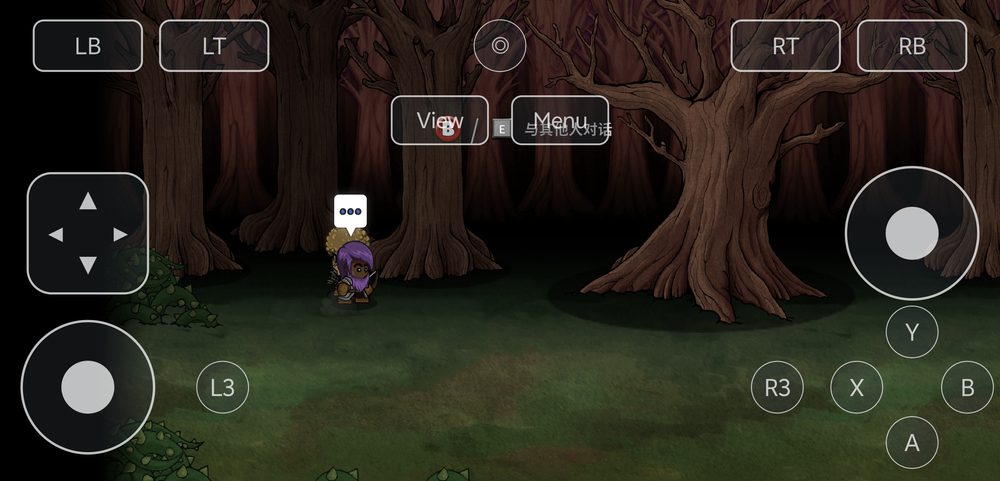
Two sticks, D-pad, ABXY, shoulders and triggers. Games see an Xbox controller; a physical controller works too.
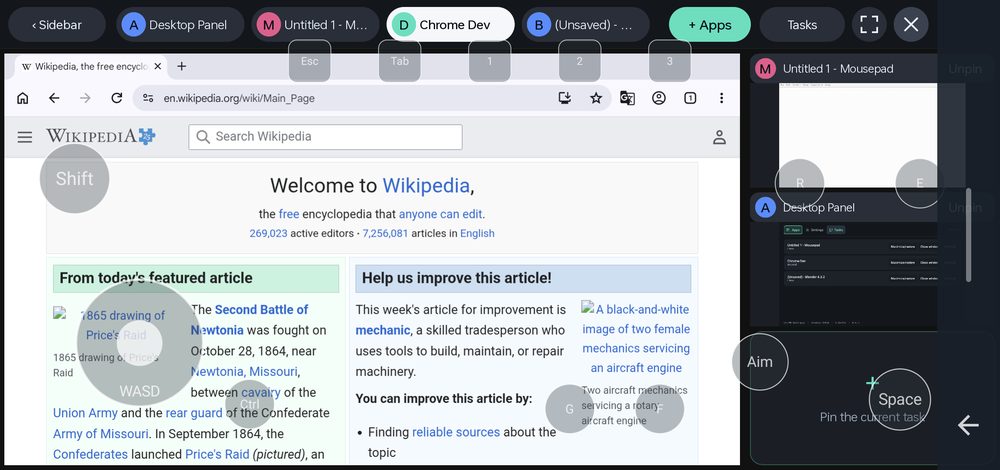
The left stick is WASD. Tap the open area to fire, drag it to look around; hold Aim for the right mouse button.
With a monitor or AR glasses, hold the phone upright: it becomes a remote with motion pointing, a touch area and a keyboard. Every Yibu control, with screenshots →
MEASURED ON A PHONE
ARLinux uses tawcroot, not PRoot. Its Linux compatibility work happens inside the application process, instead of using PRoot’s ptrace-based tracer. Both run ARM64 code on the phone’s CPU; neither needs to emulate that CPU. The difference shows up in the work around system calls.
CPython 3.13.13, configure + make -j4. Median of three fresh builds per runtime. Less time is better.
45% less build time than PRoot. Still 23% longer than the rooted Linux baseline—not zero overhead.
| Workload | ARLinux | Termux PRoot | Chroot¹ |
|---|---|---|---|
| 2,000 file accesses | 46.55 | 595.83 | 21.38 |
| Spawn 40 tiny processes | 115.86 | 109.14 | 46.77 |
| 10 Python starts + imports | 408.21 | 609.07 | 390.22 |
| 5 Git status calls | 78.34 | 241.72 | 44.85 |
| Compress 1,000 files with tar + gzip | 20.90 | 77.35 | 9.05 |
| SHA-256 compute control | 151.15 | 180.98 | 164.47 |
Not every operation wins: tiny-process spawning was about 6% slower than PRoot. These tests do not establish a CPU-compute advantage, faster games or smoother graphics.
Xiaomi 15 · Android 17 · 10 October 2026 · installed ARLinux 0.2.3 Release runtime vs official Termux PRoot 5.1.107.96, with its seccomp accelerator enabled. Same physical rootfs, programs and Android UID; warm cache. Rooted ADB test entry, not normal Activity startup. CPU frequency and temperature were not locked. This is not a comparison with native Termux, Termux:X11 or an entire proot-distro setup. ¹Rooted chroot is a lab baseline only; ARLinux itself does not require root.
Every Python build sample ↗Every workload sample ↗Open-source runtime ↗How PRoot works ↗
DISTRIBUTION DOWNLOADS
Yibu and Classic are both Debian with different desktop appearances and window layouts, and both are included in the APK. Yibu uses a main area and side slots; Classic uses freely overlapping windows. No separate Debian ZIP is needed. For other systems, download a ZIP below, choose Import distribution in ARLinux and select it. Leave it zipped. Arch, Omarchy and KDE Plasma include desktop dependencies for offline first start.
These distribution ZIPs require ARLinux 0.6.4 or newer.
HELP
It needs an ARM64 phone with Android 9 or newer. Android apps in windows need Android 11+, and an external monitor or AR glasses need Android 12+. Every video here is a real recording on a Xiaomi 15 (Snapdragon 8 Elite), an AYANEO Pocket FIT handheld (Snapdragon 8 Gen 3) or a vivo X300 (Dimensity 9500 with a Mali GPU). Leave a few GB of storage free.
Neither. ARM64 Linux programs run directly on the phone, inside the ARLinux app, through our open-source tawcroot runtime. Only x86 code is translated: Windows programs run in Wine with FEX, and x86-64 Linux games in Steam use Valve’s FEX.
Verified so far: Brotato (Linux build) on a vivo X300 and Xiaomi 15, and My Little Shark (Windows build) on a vivo X300. Windows games use ARLinux’s Bionic Wine automatically. Many games won’t run yet, and games with anti-cheat almost certainly won’t. Tell us what works for you.
The first launch unpacks the desktop on the phone. Keep ARLinux in front and check free storage. Later starts reuse it.
Android can limit child processes and memory. Follow the in-app guide to the developer option often called “Disable child process restrictions”. Its name varies by phone.
No. Updates keep your workspaces, apps and files. To get the newest built-in system in an existing workspace, choose Reinstall on the start screen: it replaces the Linux system but keeps your home folder and shared data. Or add a new Yibu or Classic workspace.
OPEN SOURCE
The runtime, compositors, graphics and distribution recipes are on GitHub. Build your own distribution as an importable ZIP.
Built on tawc, libhybris, Omarchy and their contributors. Each repository keeps its own license.